Google tag checker for your ad landing pages
Updated
Google tag checker for Chrome and Firefox: SpendCanary Page Check is free. Open the page your ad links to, click the icon, and see the Google tag, any Google Ads conversion, call tracking, tap-to-call numbers, forms and consent mode, in plain English.
Free. Works with Google Ads. Reads the page in your browser and sends nothing anywhere.
How do I check if the Google tag is on my page?
- Install it. Add SpendCanary Page Check from the Chrome Web Store or Firefox Add-ons, then pin its icon to your toolbar.
- Click. Open the page your ad sends people to, wait for it to load, and click the icon.
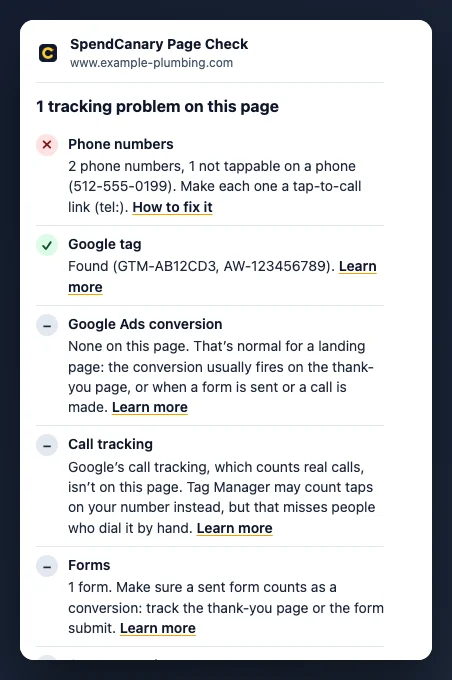
- Read. A short list shows what it found. Problems come first with a cross, then what's working with a tick, then notes. Each line links to a guide on what to do.
Check the pages your ads link to first, then your thank-you page. That's where the conversion usually fires.
What does the checker look for?
It works as a Google Ads tag checker and a conversion tracking checker in one. On the page you're viewing it looks for:
- The Google tag. gtag.js, a Google Tag Manager container or an older Google Ads conversion script, with the tag IDs it finds (AW-, G-, GT- and GTM-). Without it, Google Ads can't count sales or leads from the page. Guide: conversion tracking not working.
- Google Ads conversions. Any conversion ID and label on the page, such as AW-123456789/AbC-dEfG. None on a landing page is normal. None on a page that looks like a thank-you page is a problem. Guide: how to set up conversion tracking.
- Call tracking. Google's website call tracking snippet, which lets calls from the page count as conversions. It also spots CallRail, CallTrackingMetrics, WhatConverts, Invoca, Marchex and LocaliQ. Guide: Google Ads call tracking.
- Phone numbers. Whether each number written on the page is a tap-to-call link, so people on a phone can call with one tap. Guide: Google Ads call tracking.
- Forms. How many forms the page has, including embedded ones such as Typeform, Jotform, HubSpot or Calendly, with a reminder to count a sent form as a conversion. Guide: how to set up conversion tracking.
- Consent mode. Whether a consent mode default is set. It matters if you get visitors from the UK or EU. Guide: conversion tracking not working.
- The Meta pixel. Whether Facebook and Instagram ads tracking is on the page too. Guide: conversion tracking not working.
Why use an extension instead of an online checker?
An online checker fetches your page's code from a server. Many sites add the Google tag later, through Google Tag Manager or a cookie banner once a visitor accepts, so a server sees nothing and can wrongly report the tag as missing. The extension reads the live page in your own browser, after those scripts have run. It sees what a real visitor's browser loads.
Our landing page checker is the server-side check. Use it to see whether the page loads quickly on a phone, makes it easy to get in touch and matches your ad. Use the extension for the tags.
What should I do about each result?
- Google tag not found: add it to every page, or turn on your website builder's Google integration. Until then, Google Ads can't count anything from the page.
- Your site builder may add the tag where the checker can't see it: check with Google Tag Assistant.
- No conversion on a thank-you page: add one there, or count the form submit instead. Otherwise leads that reach it may not be counted.
- No call tracking but phone numbers on the page: set up Google's calls from website conversion, so real calls count, not only taps on the number.
- Phone numbers not tappable: make each one a tap-to-call (tel:) link.
- Forms on the page: make sure a sent form counts as a conversion.
- No consent mode default: if you get visitors from the UK or EU, ask whoever set up your cookie banner.
- Another call tracking tool: calls count in Google Ads only if you import them there as conversions.
A tag on the page doesn't prove it records conversions. After any fix, send a test form or make a test call, then check the conversion's status in Google Ads.
Does it collect any data?
No. It runs only when you click its icon, reads that one tab in your browser, and shows the results in the extension. It
sends nothing to us or anyone else, stores nothing, and has no analytics and no account. It asks for two permissions:
activeTab, to read the tab you clicked on at that moment, and scripting, to run its own built-in,
read-only check there. It can't see your other tabs. Read the extension section of our
privacy policy for the details.
Install on Chrome or Firefox
It's free on both. Google Ads is a trademark of Google LLC. SpendCanary is not affiliated with Google.
Common questions
Is the Google tag checker free?
Yes. The extension is free, with no account and no sign-up.
Does it work on any website?
It works on any normal web page, including pages you don't own. Browsers don't let extensions read their own settings pages or the extension stores, so it can't check those.
Does it replace Google Tag Assistant?
No. Tag Assistant shows every tag as it fires while you click around. This checker gives a quick answer on one page in one click, in plain English, with a guide for each problem.
Is it made by Google?
No. SpendCanary is independent and works with Google Ads. It needs no access to your Google Ads account.
Check your whole account
The checker looks at one page. The free SpendCanary scan reads your Google Ads account (read-only) and shows your wasted spend in dollars, including tracking that has stopped recording conversions.